General
For assistance, contact SABOR’s MLS Support by calling 210-530-8760, emailing mlsinfo@leramls.com, chatting online with an MLS Representative, or visiting the MLS Department at SABOR Headquarters. Our Help Desk is open Monday through Friday, 8:30 AM to 5:00 PM.
To update your contact information, simply log in to One Access and head over to the Member Portal section where you can make changes with ease. If you need any help along the way, our team is happy to assist—just reach out to us at support@sabor.com.
Yes, we offer a variety of classes designed to help you confidently navigate the MLS and take full advantage of its features. Here are some of the sessions available:
ConnectMLS: CMA How-To Guide
ConnectMLS: Listings 101
ConnectMLS: Overview, Searches, and Adding Listings
ConnectMLS: Prospecting Tools, Customization, and Transaction Management
ConnectMLS: Tools, Resources & Links
Click here to learn more and register. These classes are a great way to sharpen your skills and make the most of your MLS access.
All MLS classes offered at SABOR are free of charge, We do offer free CE Credit for classes, please contact the MLS Department for more information on times and dates for CE options. SABORMLS Support 210-530-8760, or mlsinfo@sabor.com
Unlimited but when exporting it is 5000
To request a Letter of Good Standing, just reach out to Member Services at support@sabor.com . Be sure to include your license number and specify the Board or Association where you’d like the letter to be sent. We’re happy to assist and ensure your request is handled promptly!
For any questions or concerns related to your real estate license, please reach out directly to the Texas Real Estate Commission (TREC). Their team is best equipped to assist you with licensing matters.
Phone: 512-936-3000
Website & Email Contact: www.trec.texas.gov
They’re there to help ensure your licensing needs are met efficiently and accurately.
Yes. TREC is a separate entity from SABOR and changes made at one do not translate to the other.
Technical
To reset your password, please visit the SABOR website and click on the “One Access Login” button. Once you’re redirected to the Solid Earth login screen, select the “Forgot Password” link and follow the prompts provided. If you need a little extra help, feel free to reach out to our MLS Department—we’re happy to walk you through the process. You can contact us by phone or email us at mlsinfo@leramls.com for step-by-step assistance.
Go to the SABOR website and click on One Access. On the login page, you can enter either your username (which is your license number) or your email address. If you’ve forgotten your password, simply click on Forgot Password and a reset link will be emailed to you. If you need any additional assistance, feel free to contact the MLS Department and we’ll be happy to help
While using the Map function in the MLS, simply hover over the globe icon located in the bottom right corner. A menu will appear, allowing you to select your preferred view: Road, Aerial, or Hybrid. This makes it easy to customize the map display to best suit your search.
If Realtor.com doesn’t successfully process your listing’s photos, you have the option to email them directly. Simply send the first four photos to images@realtor.com. Be sure to include the MLS number in each photo’s file name before attaching them to your email. This helps ensure the photos are correctly matched to your listing. If you’re still unsuccessful, you can always reach out to the MLS Department for assistance at mlsinfo@leramls.com.
If you notice a missing photo on SABOR.com or experience any issues with an MLS photograph, we’re here to help! Simply reach out to us at mlsinfo@leramls.com, and our team will gladly assist you in resolving the issue.
You can easily reposition your listing on the map by selecting “Update/Reposition on Map” under the General tab while in edit mode. This allows you to fine-tune your listing’s location with just a few clicks. If you need any assistance or encounter any issues, feel free to contact us at mlsinfo@leramls.com — our team is always happy to help!
You have the flexibility to send a one-time email or select a client you’ve already saved by simply clicking on the blue envelope icon located in the top right corner. From there, just enter the necessary details and easily send the information to yourself or directly to your client, keeping everyone informed with just a few quick steps!
Start by navigating to the Listings icon. Once you hover over it, scroll down and select View/Manage Listing & Transactions. Next, locate your listing and click on the orange pencil icon on the far right to enter edit mode. From there, select “Change Sales Data” to make the necessary updates. If you need any assistance or encounter any issues along the way, feel free to contact our MLS team at mlsinfo@leramls.com — we’re always here to help and ensure your listing is accurate and polished!
Membership
Once all dues have been paid and your application has been fully approved, access to the MLS will typically be activated within 1 to 2 hours with a welcome email. You’ll be up and running in no time, ready to take full advantage of the tools and resources available to you!
To easily view the specific charges on your account and take care of any outstanding invoices, simply log in to One Access. From there, click on the RAMCO icon located under the Member Portal. You’ll have quick access to your billing details and a convenient way to make payments and keep your account up to date!
If MLS fees are not paid by the designated deadline, your MLS access will be temporarily deactivated. Once payment is received and SABOR has been notified, access is typically restored within 2 to 3 hours. Please note, if payment is made after 5:00 p.m. or during the weekend, access will be reinstated on the next business day. Annual dues must also be current in order to maintain uninterrupted MLS access. Staying up to date ensures you always have full access to the tools and resources you need!
If annual dues are not paid, your membership will be terminated and your MLS access will be fully deactivated. However, if annual dues are paid but MLS fees remain unpaid, your membership will stay active, but MLS access will be suspended until the outstanding fees are cleared. Keeping both dues and fees current ensures uninterrupted access to all the valuable MLS tools and resources available to you!
All resignations must be submitted in writing and can be sent via email (support@sabor.com), mail, or fax. If you have any outstanding balances at the time of resignation, payment will still be required. Please note, if you decide to rejoin in the future and still have an unpaid balance, your request for reinstatement may be denied until the balance is satisfied.
MLS Listing
No. If a listing is available for syndication, you cannot selectively restrict certain MLS Participants or Subscribers from displaying it on their individual IDX sites. Once a listing is syndicated, it must be equally accessible to all authorized participants to ensure fair and consistent exposure across the MLS network.
Yes! The listing Broker or Agent has the ability to update the listing directly in MLS. Once the changes are made, the refreshed data will automatically become available the next time the IDX site updates, ensuring the most current information is displayed to potential buyers and clients.
No. Consent to display listings from other Participants is not a requirement for MLS participation. All eligible listings are shared and displayed according to MLS rules, ensuring equal access and exposure for all Participants without the need for individual permissions.
Please complete this form with signatures from both Brokers and email the finalized form to support@sabor.com. If the form is not received before the agent is officially transferred to the new office, the listings will remain under the previous Broker or Office Manager. Once the form is submitted and processed, we’ll promptly move the listings under the designated agent.
While this is not a violation of MLS Rules, it’s important to remember that restricting other Participants from displaying your listings may limit the property’s overall marketing exposure. Allowing broader visibility helps maximize reach and attract more potential buyers, giving your listing the best possible chance to stand out in the market.
When changing the listing to Sold or Pending, you will need to type “MLS” where you would normally type the agent’s last name. When you click “Search,” a non-MLS option will show for you to select.
IDX
This tool allows you to give consumers the ability to search listings directly from your own website. SABOR offers several flexible options to implement this feature, including embedding a frameable link, partnering with a web designer, or simply linking to SABOR.com. Choose the solution that best fits your needs and start enhancing your site’s functionality today!
Today’s online consumers expect real estate professionals to offer rich, high-quality property information at their fingertips. As you build your online presence, it’s important to keep this in mind. Internet Data Exchange (IDX) allows you to meet this expectation by enabling property search functionality directly on your website—giving your clients the seamless experience they’re looking for.
IDX enhances you to add a property search feature directly to your website, making it easy to guide consumers to your listings and keep them engaged on your site.
Listing Syndication takes your marketing even further by distributing your listings across major real estate platforms like Realtor.com, TexasRealEstate.com, and more—giving your properties maximum exposure and helping you reach a wider audience with ease.
While editing your listing, simply navigate to the Media tab, where you’ll have the option to authorize your listing for display by other MLS Participants. This added visibility can help expand your property’s reach and attract more potential buyers through broader exposure across participating platforms.
Supra & eKey
Supra is SABOR’s exclusive key and lockbox service, available to all SABOR MLS subscribers. With Supra, electronic keys are issued, allowing secure and convenient access to lockboxes that safely store property keys. This streamlined system helps ensure smooth property showings while maintaining security and accountability.
SABOR offers eKeys.
Members can conveniently purchase lockboxes at our Member Care Center located at SABOR Headquarters. Lockboxes are available for purchase during regular business hours, making it easy to stop by and pick up what you need. For current pricing and details, simply click here.
If you experience issues with your lockbox service, please contact SABOR’s Member Care Center during normal business hours by calling 210-593-1206, emailing support@sabor.com, accessing our Online Chat or stopping by. If you require assistance outside of normal business hours, please contact Supra at 1-877-699-6787.
You may call SABOR’s Member Care Center during normal business hours at 210-593-1206 for a new authorization code. For help after SABOR business hours, call Supra at 1-877-699-6787.
The eKey system is a key used to open lockboxes, however unlike other electronic keys, eKey is operated through your phone. Click here to view pricing.
CubiCasa
Scan the entire property in one continuous session, beginning on the lowest floor and working your way up. Keep the device steady at chest height, maintain a normal walking pace, and always face the camera in the direction you’re moving. Avoid sudden movements and maintain an optimal distance of 5–11 feet from objects. Refrain from switching floors mid-scan, opening doors while scanning, or covering the lens. For small rooms, scan through the doorway without entering. Only pan slowly for fixed features like furniture or windows. Ceilings under 7 feet should be scanned briefly at a slight upward angle without standing directly beneath them. For more helpful tips and a detailed walkthrough, please check out this link and video on best scanning practices.
There’s no need to pause when approaching stairs — simply continue scanning as you walk up or down, and our system will automatically detect the staircase and assign it to the appropriate floor level. It’s a seamless process designed to capture every detail of the property without any extra effort on your part!
In order to capture detached structures, it’s okay to walk any distance less than 300 feet while still scanning, if the distance is bigger than that, we would recommend making two separate scans. Exterior areas can also be included in the floor plan, please check this video for some tips on how to scan these areas.
We have two ways of editing and fixing a floor plan, Quick Edit and Change Request.
On the Quick Edit tool, you can do a few minor changes like:
- Fixed Furniture
- Compass tool
- Add element
- Change Labels
- Rotate Labels
- Move labels
- Resize text
- Toggle on/off the dimensions
- Add free text
In case you can’t solve it on the Quick Edit tool, you can submit a Change Request so that the production team can change this for you. See the example requests below:
- Add, change, or remove doors, windows, and furniture
- Add a space you forgot or were unable to scan, for example, a garage, a room, or a balcony (Please note that we cannot guarantee the accuracy of dimensions for areas that haven’t been scanned)
- Structural changes, for example, changes in wall positions.
You can submit a Change Request through the order’s page -> Actions -> Change request.
After that, you can click on “New Request” add all necessary information, and send.
Please check this article to learn how to define the colors for your floor plans.
The style selected will automatically apply to all new orders.
In order to apply the style to delivered orders, go to the order page, click on “Actions” then click on “Use another style”, select the template you have created, and click on “Change Style.”
You can change the unit of measurement under your account settings. Please follow the steps described here.
Once you have created or updated your style template. Go back to the order you want to edit. Click the Actions button on the right, and then select Use another style. The plan should update within a few moments.
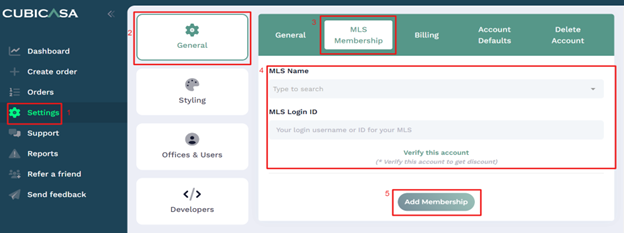
You can add your MLS information by following these steps:
1. Log in to your account from the website
2. Click on the Settings button on the left side of your screen
3. Click on the General tab
4. Click on the MLS Membership tab on the top menu option
5. Enter your MLS membership information and select “Add Membership” when you are done to save
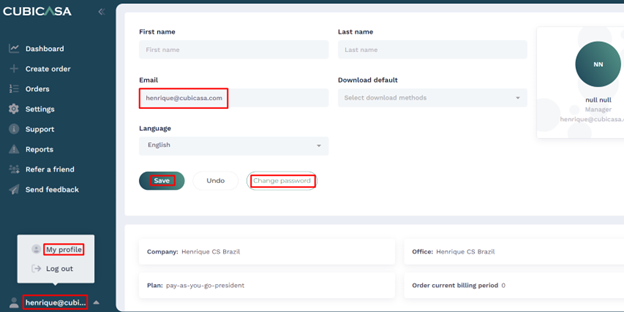
Log in to your account from the website, click on your name at the bottom left of your screen, then click on “My Profile”: